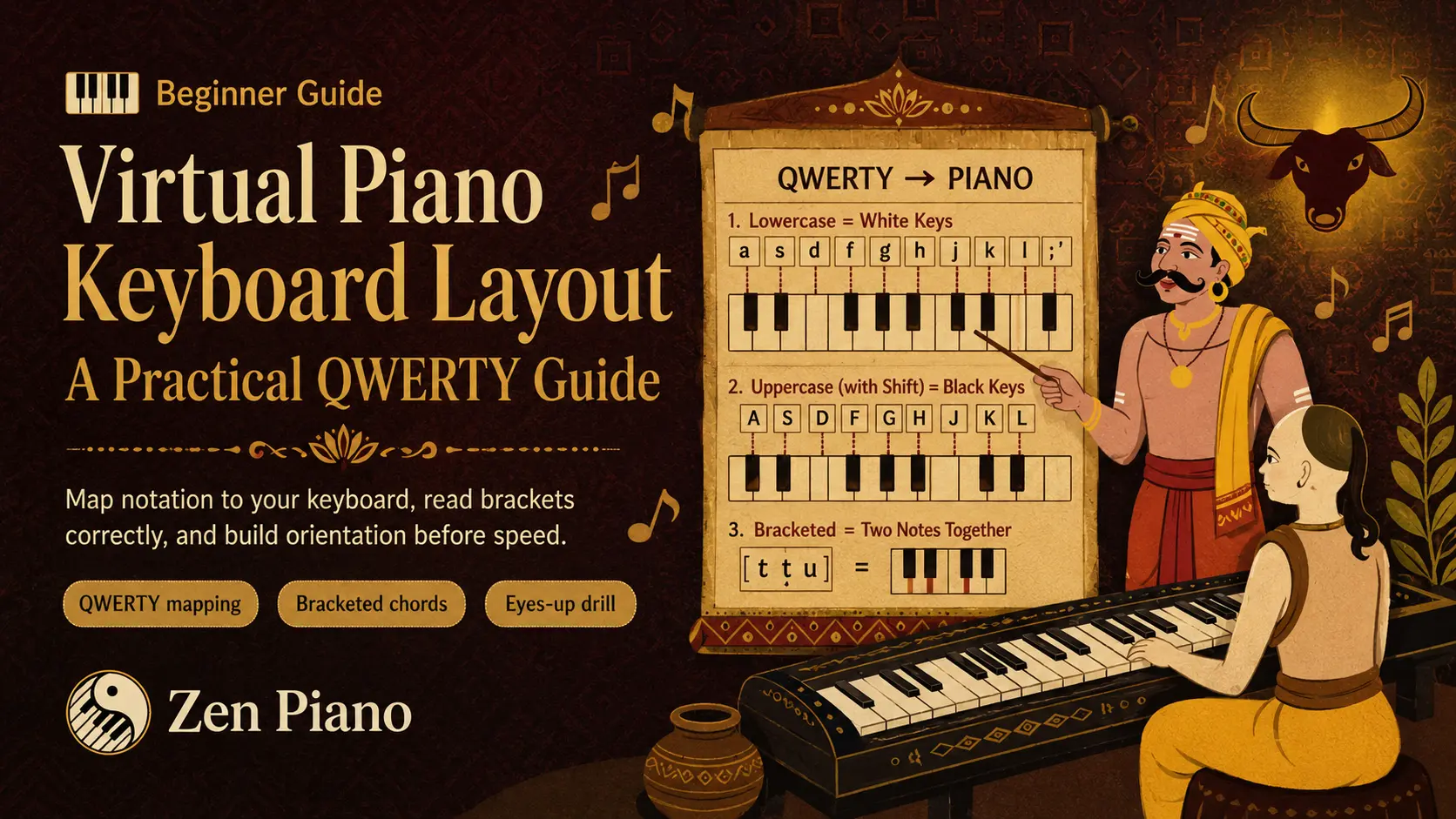
Virtual Piano notation represents musical events as QWERTY key presses rather than a staff. A single character is one note, brackets group notes that play together, and spaces separate events. This article compares the two output modes; the keyboard-layout guide owns the detailed physical mapping.
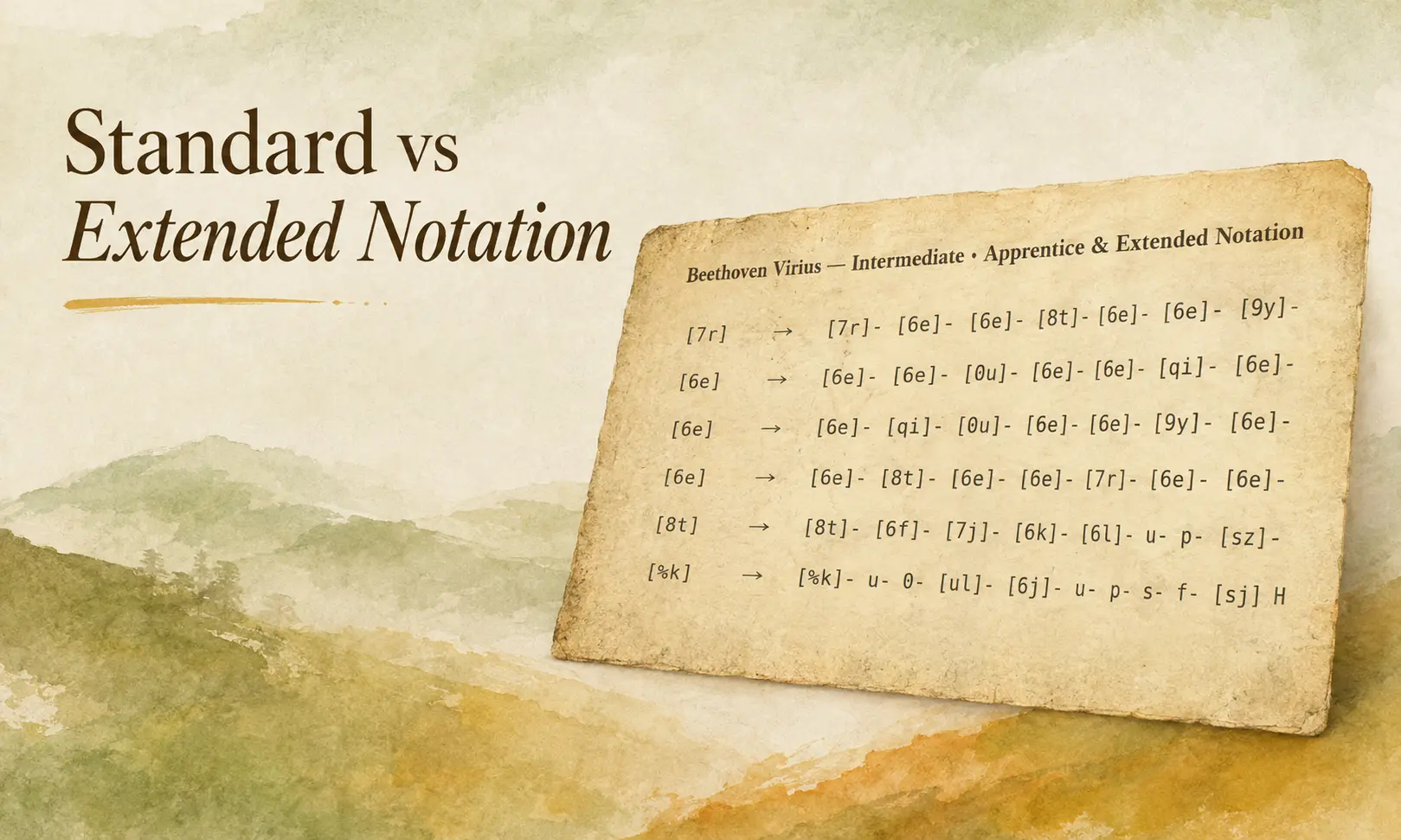
Standard and Extended are not separate systems to memorize. Standard removes timing slots so the note sequence is compact. Extended leaves those slots visible so you can judge holds and pauses before practice.
A quick look before the rules
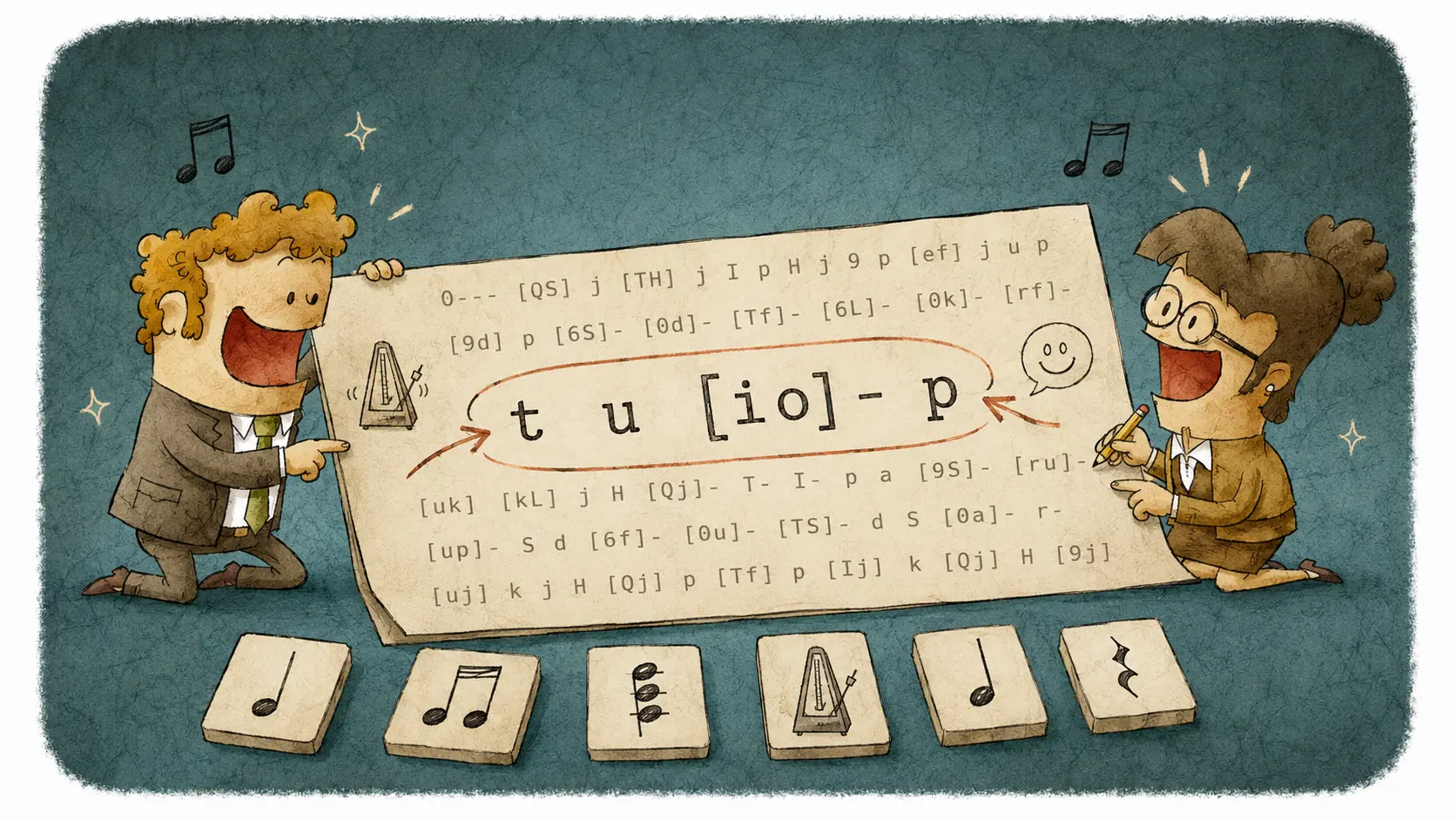
Here's one short phrase in both modes:
Same four things to press. Extended just tells you to wait a beat after `t` and after `u`, and to hold the `[io]` chord for two beats before moving to `p`. Once you see that side by side, the rest of this page is really just filling in the details.
Basic notation rules used in Zen Piano
- A single letter plays one note. `t` plays one key.
- Letters inside brackets play together as a chord. `[tu]` presses both keys at the same time.
- Letters separated by spaces play in order. `t u i` means press `t`, then `u`, then `i`.
- A bar splits the sheet into measures. `t | u` marks a measure line between the two notes.
- `t` = C4. `T` = C#4: hold Shift with `t` for the adjacent accidental, not the same key or an octave change.
Standard notation: the compact, familiar format
Standard keeps only note, chord, and measure tokens. Choose it when a compact line is easier to scan and you already know the rhythm from the source or recording.
Extended notation: the same notes, plus timing
Extended starts from the exact same notes as Standard and adds dashes to mark time. A dash attached to a note or chord, like `t-`, means keep holding it. A dash on its own, with spaces on both sides, marks a beat where nothing new happens: a rest.
That's the whole difference. Extended isn't a harder version of the notation, and it isn't adding notes for you to memorize. It's Standard with the clock left visible.
See it worked out
| Token | What you play | What changes in Extended |
|---|---|---|
| `t` | Press t | Hold for one beat before moving on |
| `u` | Press u | Hold for one beat, after a beat of rest |
| `[io]` | Press i and o together | Hold the chord for two beats |
| `p` | Press p | Plays right after the chord, no rest |
The note count is identical in both rows. Extended just tells you how long to sit on each one.
A common mix-up: playing the dashes
New Extended readers sometimes press a key for every dash on the line, as if each one were its own note. A dash isn't a note. It's either silence or a held sound, depending on whether it's attached to a letter or standing alone.
If a phrase feels like it needs more key presses than it should, check whether you're playing the dashes instead of reading past them. Read `t-` as "hold t," not as "play t, then play something called a dash." Once that clicks, Extended sheets stop looking cluttered and start looking like a rhythm map.
What converter settings change before you generate a sheet
| Setting | What it changes |
|---|---|
| Difficulty | Balances a simple, easy-to-play sheet against one that keeps more of the original detail |
| Timing detail | Controls how many timing slots the converter keeps in Extended mode |
| Chord controls | Simplifies dense MIDI chords down to something playable on a QWERTY keyboard |
| De-duplicate | Removes repeated notes that come from layered MIDI tracks |
| Transpose | Shifts the song into the playable Virtual Piano range |
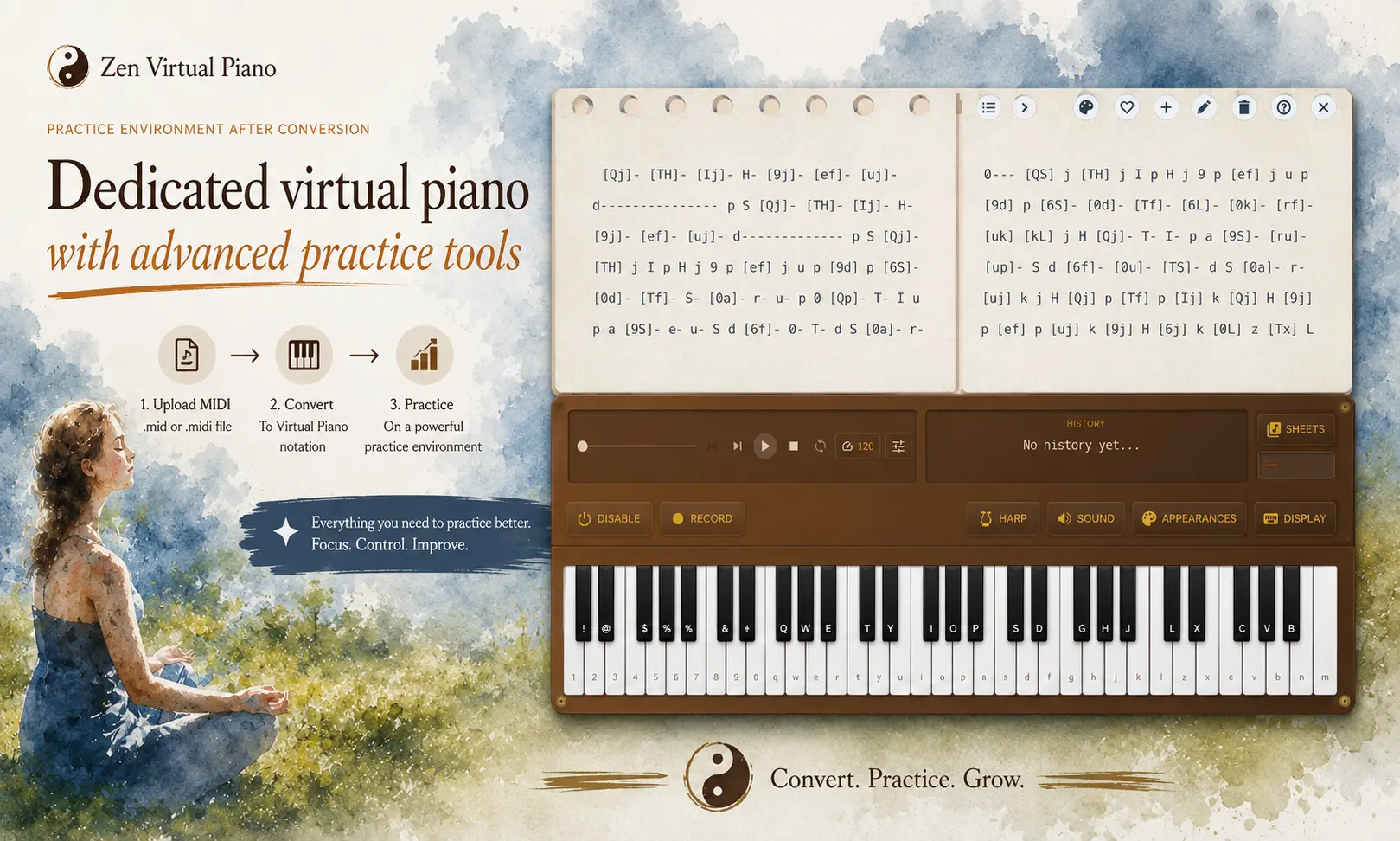
Don't treat your first conversion as final. Generate a sheet, glance at how dense it looks, then adjust a setting or two until it matches what you actually want: a clean read, closer timing, or something easier to play at speed.
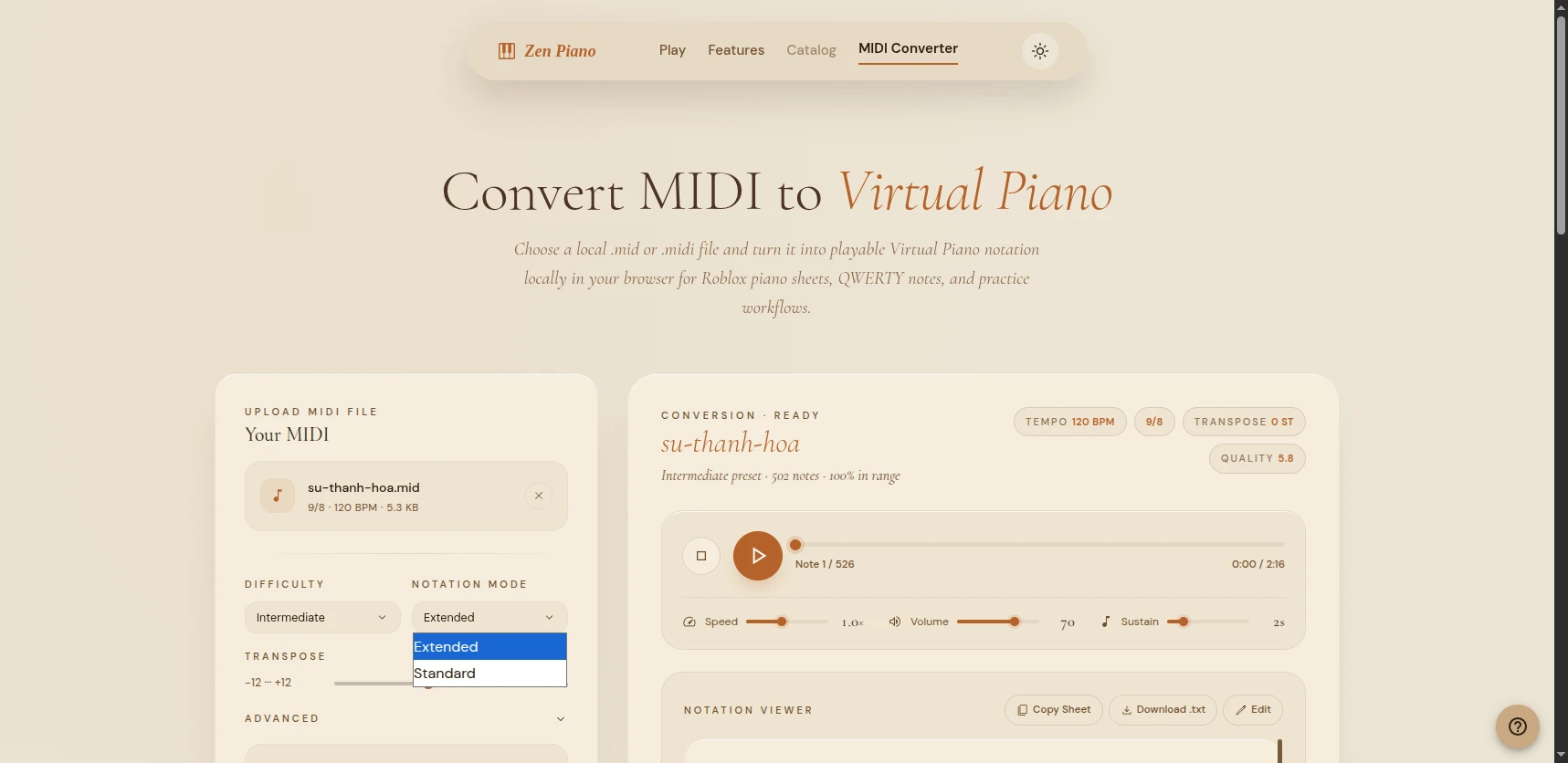
Choosing Standard or Extended
Choose Standard if you want the shortest, cleanest sheet and you're comfortable filling in the rhythm by ear as you go.
Choose Extended if the rhythm matters to you directly, especially for songs with long held notes, specific pauses, or a rhythm you can't quite place from the recording.
Not sure yet? Convert the same MIDI file both ways and compare them side by side. The notes will always match. Only the amount of timing detail changes.
Practice now
Open a short sheet in the Library and identify its note and chord events. For a MIDI you control, compare Standard and Extended output from the same input; if the compact version hides a pause or hold you need, keep the Extended version for practice.
Practice with the right guide
Choose a short Library sheet to apply the decision rule. The article CTAs provide the separate conversion and practice handoffs.