Use this when the hard part is one passage, not the whole piece.
What you need before starting
- A sheet already loaded and visible on screen.
Nothing else — the range is built directly from the notes already on the page.
Set the range
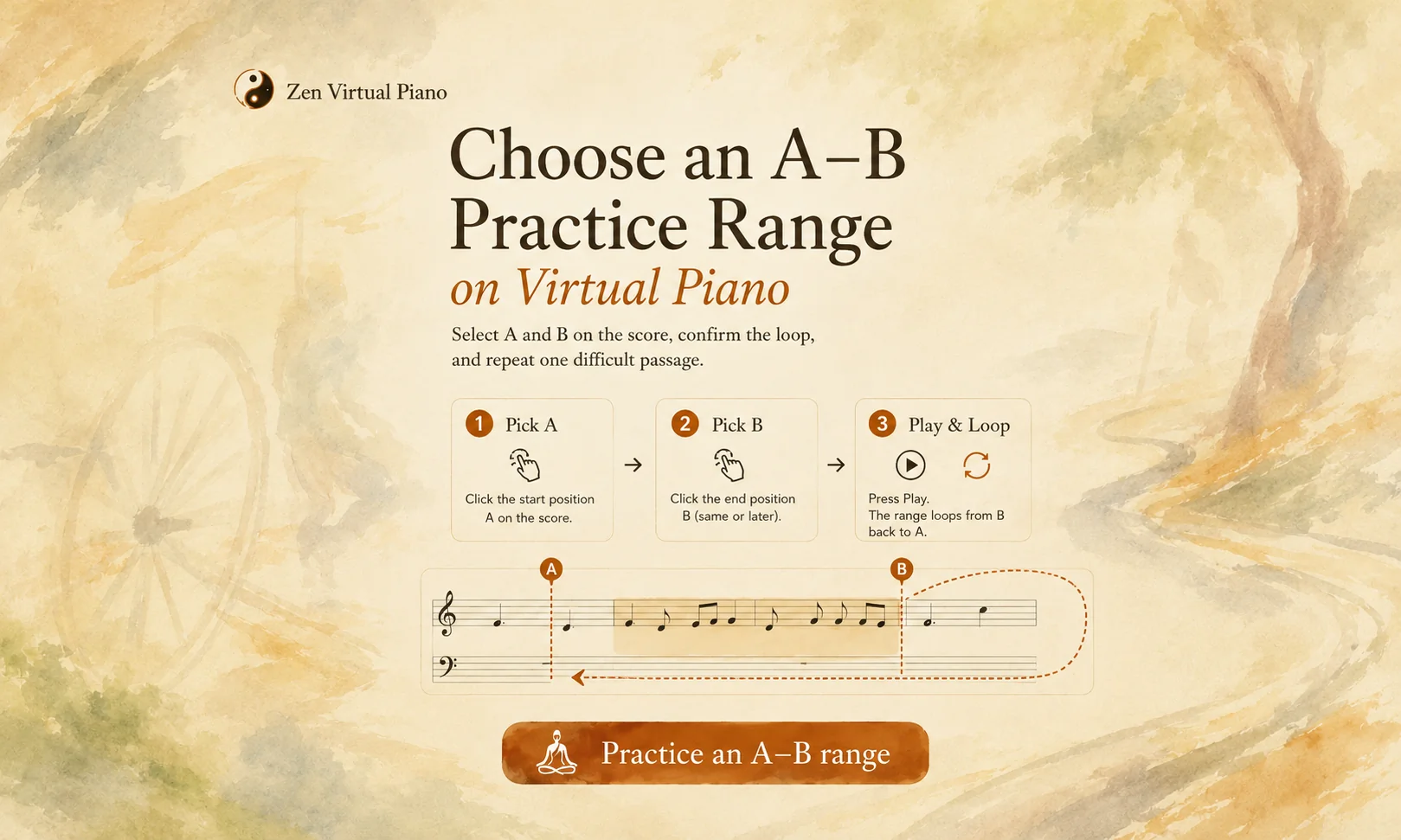
Open range selection. With a sheet loaded, choose the practice-range control. The score switches into pick-start mode: you'll choose A directly from the musical positions already on the page.
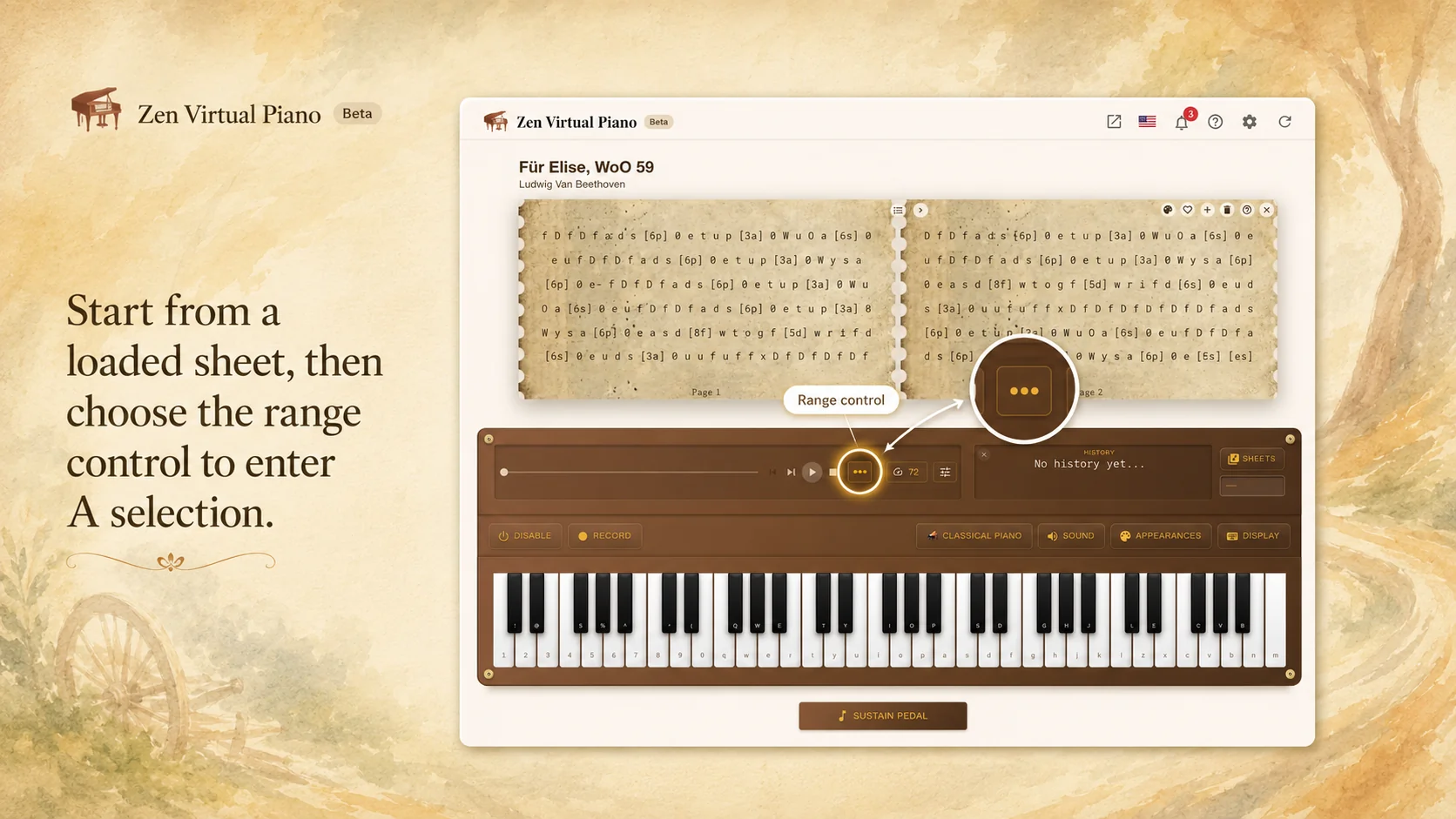
This is what makes it more precise than the generic whole-sheet Loop — the target becomes the span you select, not the entire sheet.
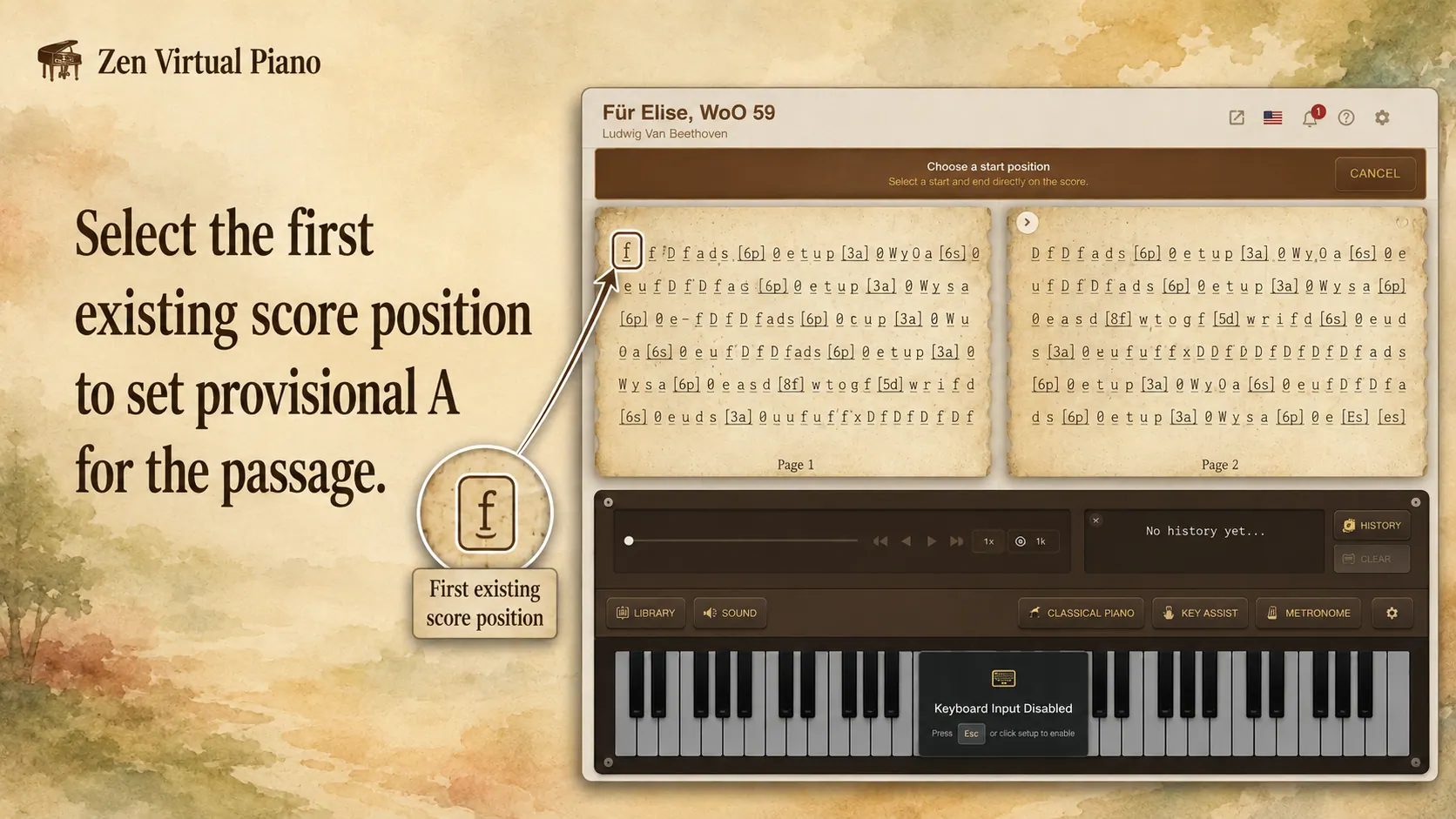
Pick A. Selectable positions are notes, chords, timed rests, and sustained entries. Separators and continuation fragments aren't selectable on their own.
Commit B. Pick an inclusive endpoint at the same position as A or later. The moment you do, the A–B range is committed and Loop turns on.
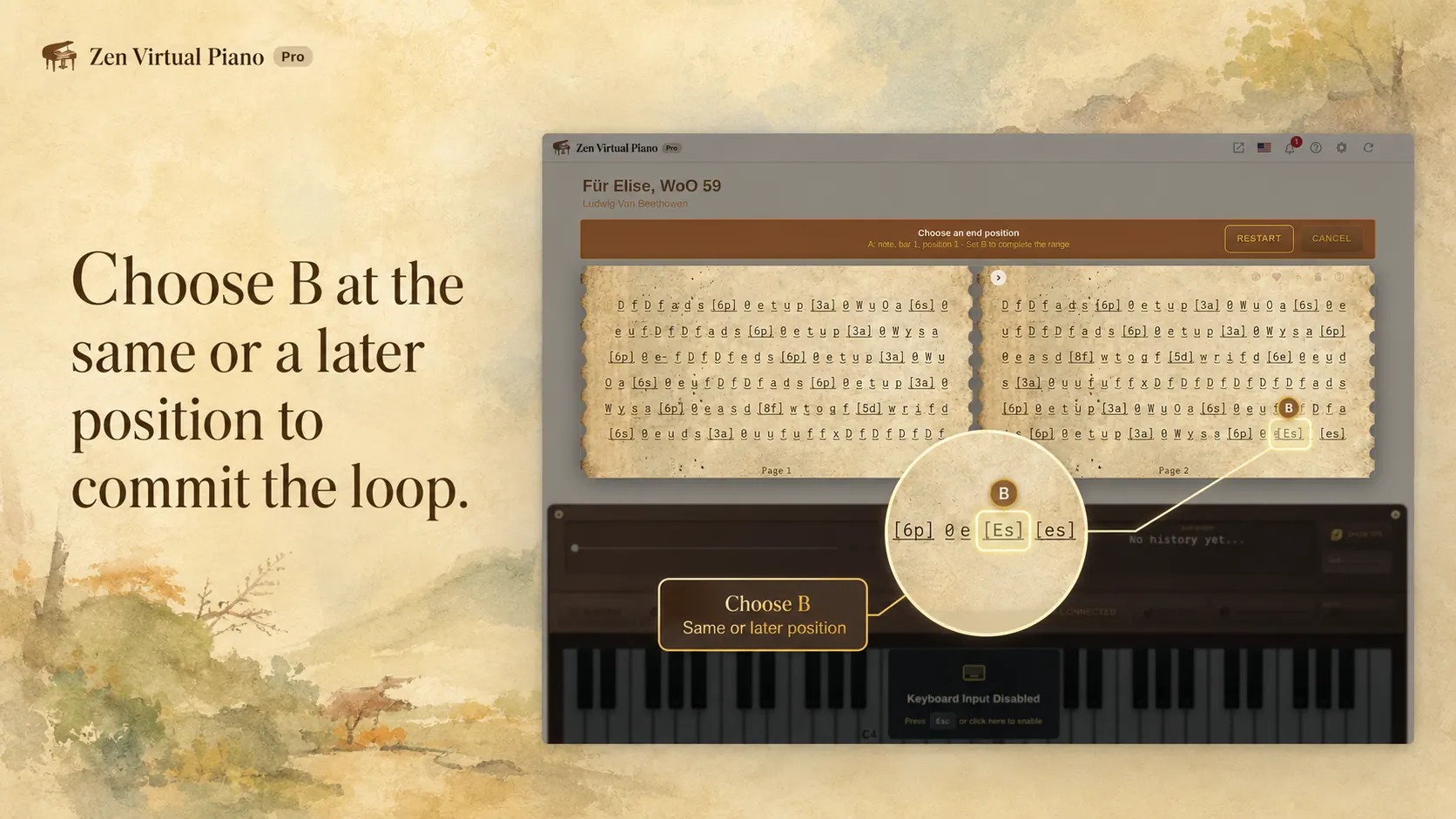
One behavior worth knowing: picking an earlier position for your second selection doesn't create a reverse loop. It just replaces your provisional A. The range always runs forward, from an earlier committed point to a later one.
| Screen state | Your action | What changes |
|---|---|---|
| Pick-start mode, no A yet | Select a note/chord/rest/sustained entry | That position becomes A |
| A set, picking B | Select a same-or-later position | Range A–B commits, Loop turns on |
| A set, picking B | Select an earlier position instead | That position replaces A — no reverse loop |
Verify the loop
- Load the sheet and open the practice-range control.
- Select A at the passage's first position.
- Select B at or after that point — the committed range appears and Loop turns on.
- Press Play, and confirm playback loops from B back to A.
Common question: does an unfinished selection change anything?
No. Pressing Cancel or Escape only discards the in-progress pick — it never touches a range you've already committed. Starting a new selection replaces the old range once you complete it; nothing changes until the new B is picked. If you just want the current range gone, use Clear.
What persists — and what doesn't
The range is tied to the current session and the currently loaded sheet.
Survives: Stop, navigating around the sheet, and responsive repagination — as long as the same sheet stays loaded.
Clears on: reloading, swapping to a different sheet, unloading, closing the session, or pressing Clear.
Not available yet: a saved or synced range library, drag-to-select, a numeric endpoint editor, multiple ranges at once, a repeat counter, count-in, progressive tempo training, or a second tempo setting dedicated to practice.