A short eyes-up drill builds that orientation faster than repeating a whole song.
How QWERTY notation maps to your keyboard
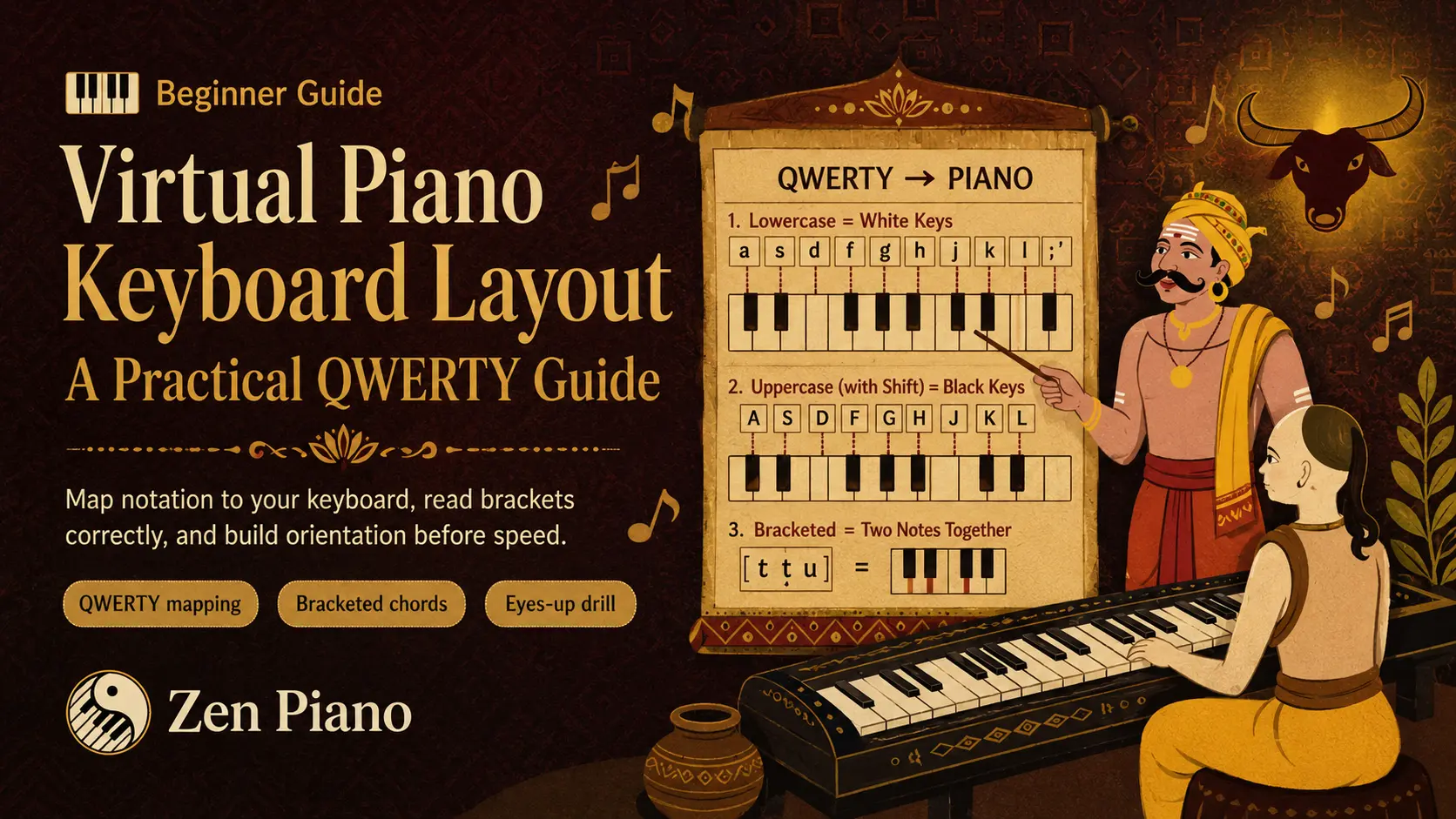
Zen Virtual Piano maps keys chromatically across its C2–C7 range: the number row covers the low register, the top and home letter rows cover middle and upper registers, and the bottom row reaches the highest notes.
| Keyboard row | Register |
|---|---|
| Number row | Low register, where C2–C7 begins |
| Top and home letter rows | Middle and upper registers |
| Bottom row | Highest notes in the range |
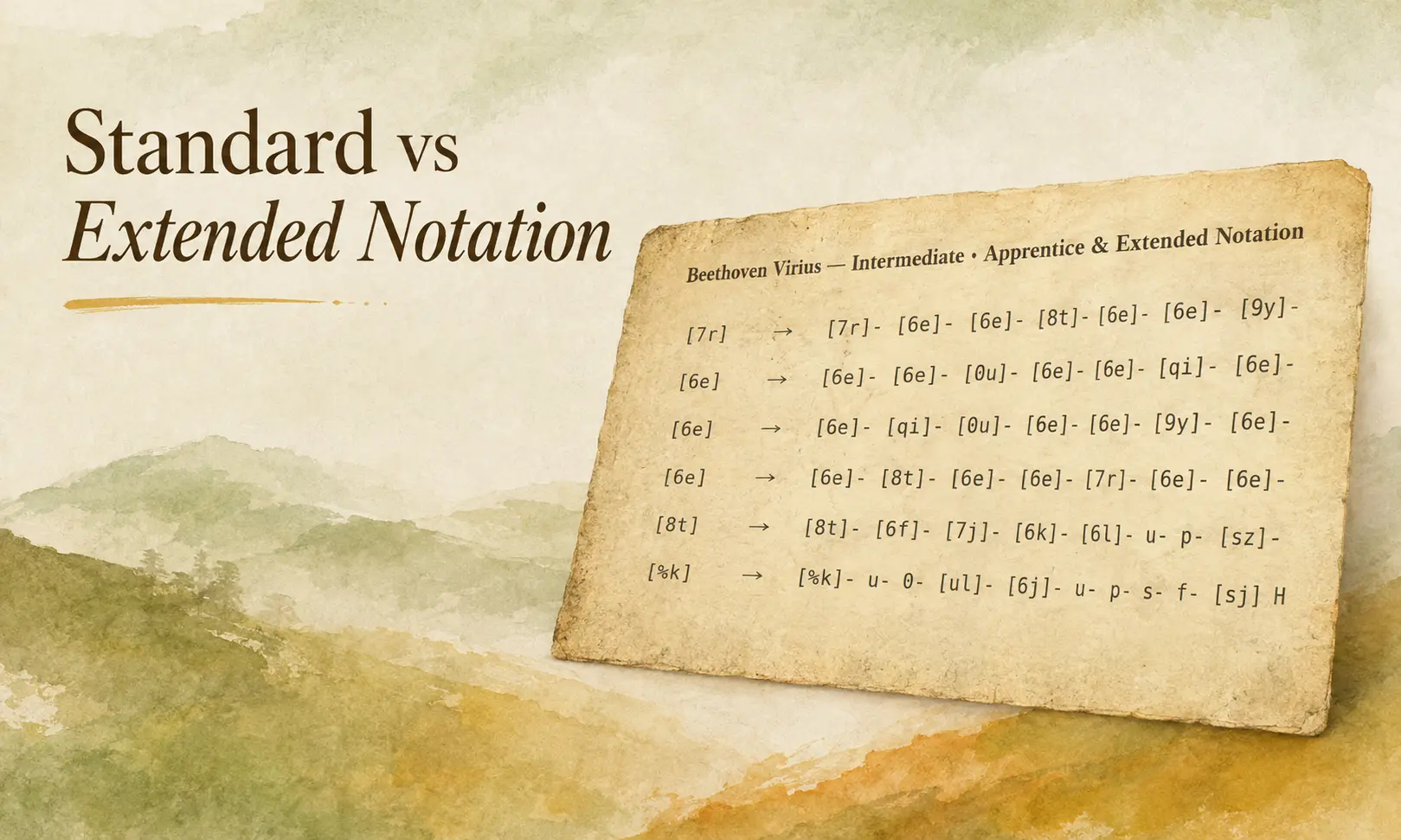
Lowercase letters and plain numbers map to white-key pitches. Their uppercase or shifted-symbol partners map to adjacent black-key pitches. `t` = C4 and `T` = C#4: capitalization changes the pitch within that same row, not the octave. Brackets around a group mean those notes sound together, at the same time.
One example, worked through completely
Take this short sequence: `t [tu] T` (`t` = C4; `T` = C#4)
- `t` is a single lowercase character: it maps to C4. Press the matching key.
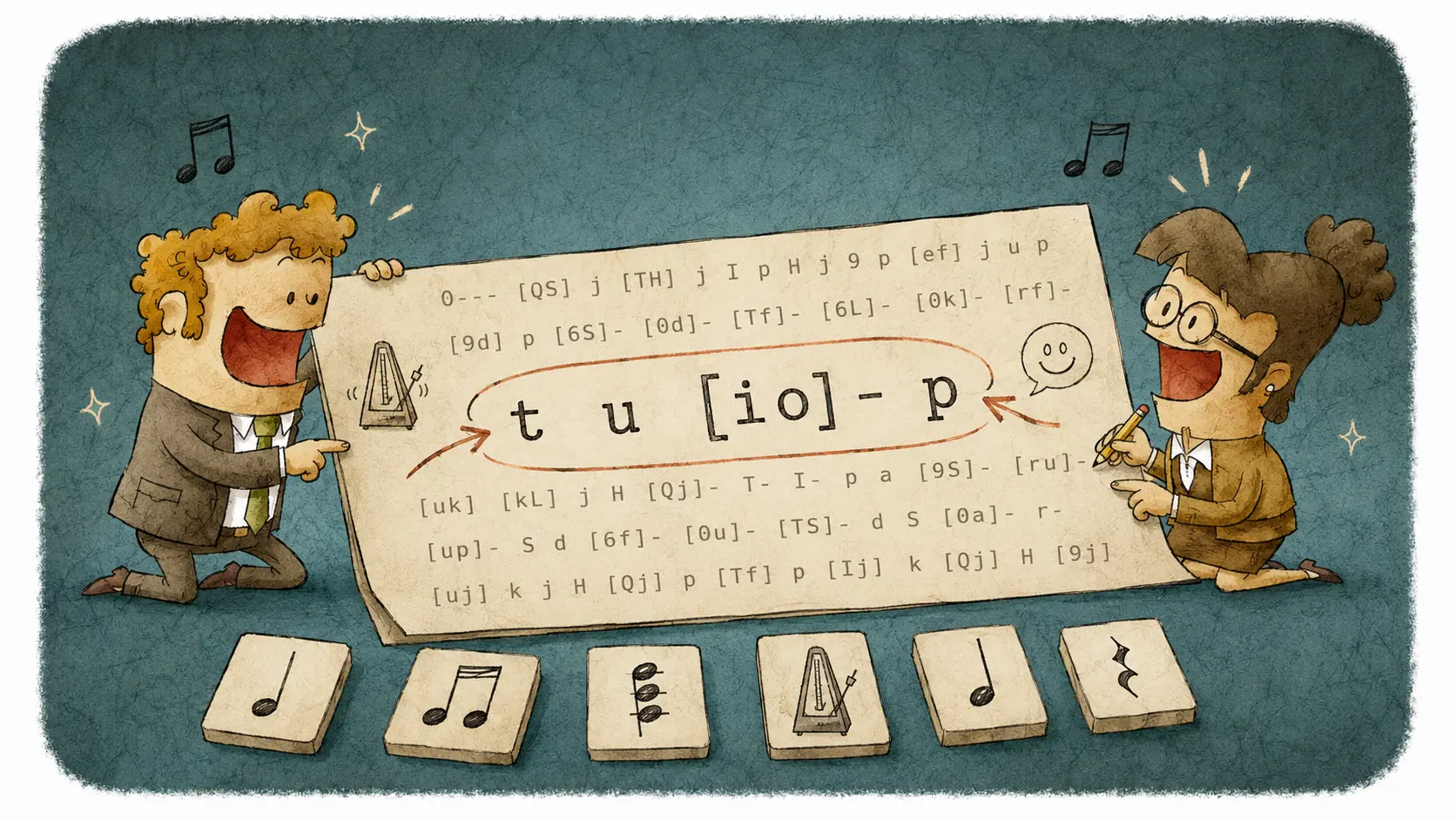
- `[tu]` is a bracketed group. Press `t` and `u` at the same time, not one after the other.
- `T` is uppercase: hold Shift and press `t` as one coordinated motion to play C#4, the adjacent accidental—not the same key and not an octave above.
Verify one mapping with Key Assist
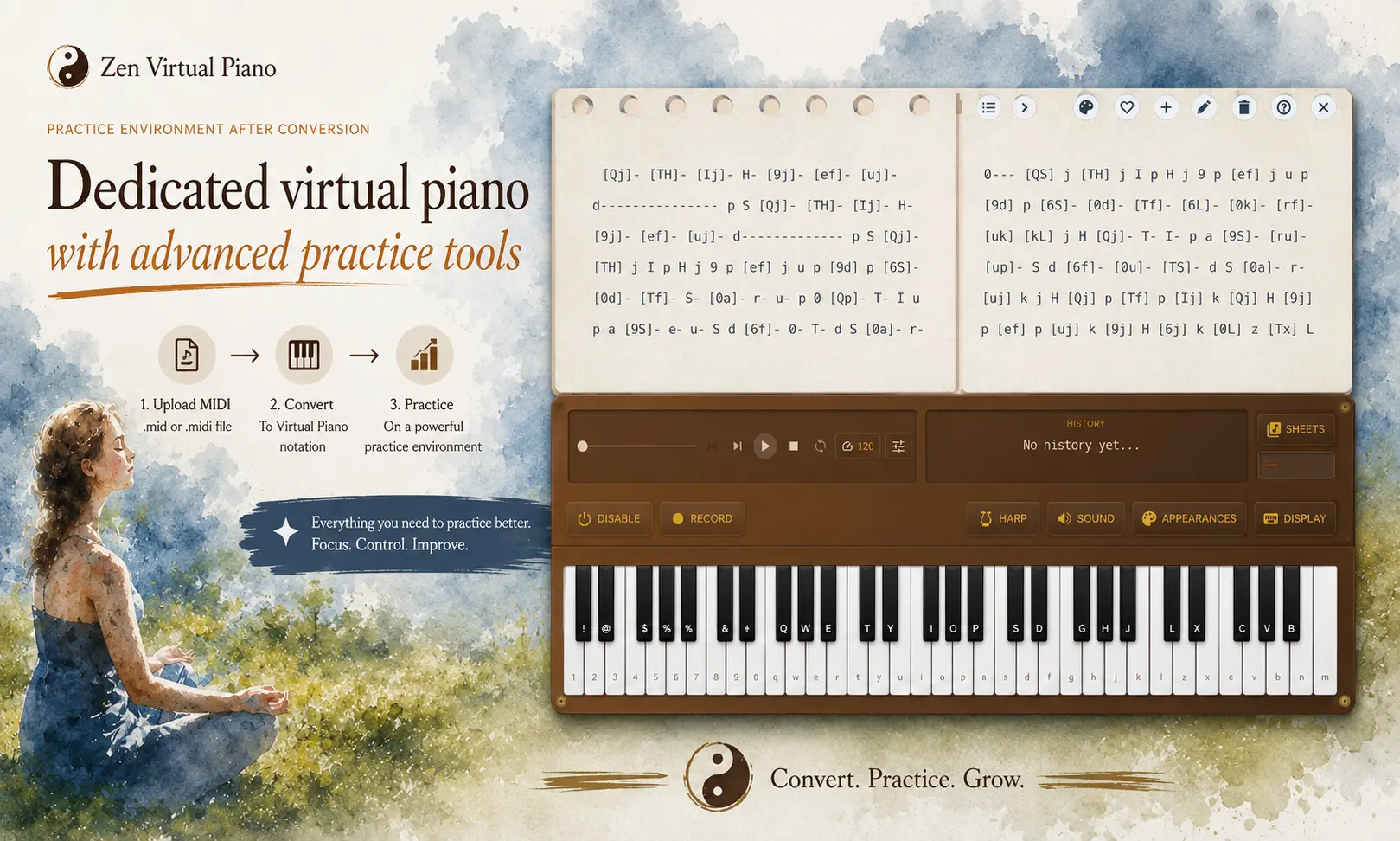
Open Zen Virtual Piano, open Key Assist, and choose the computer-key labels. Press `t`, then hold Shift and press `t` again. The first action plays C4; the second plays the adjacent C#4 pitch. The on-screen labels confirm which physical key belongs to each piano key while the audible change confirms that uppercase is a different pitch, not a louder or higher-octave version of the same note.
Quick reference
| Notation cue | Physical action | Common mistake |
|---|---|---|
| Lowercase letter | Press the matching key | Moving your whole hand for a key that's actually close by |
| Uppercase letter | Hold Shift and press the letter | Pressing Shift after the note instead of with it |
| `[tu]` | Press t and u together | Playing t, then u, as a quick sequence instead of at once |
Build your anchors: an eyes-up orientation drill
| Time | Do this |
|---|---|
| 0:00–1:00 | Rest your index fingers on familiar home row keys, then look up at the screen instead of down at your hands |
| 1:00–2:30 | Press one nearby lowercase character, return to the anchor, repeat with the other hand |
| 2:30–4:00 | Practice one uppercase character, treating Shift and the letter as a single coordinated action |
| 4:00–5:00 | Finish with a bracketed two-note group, pressing both keys at the same instant |
A common mistake: treating Shift like an octave button
It's an easy thing to assume: uppercase looks like a "bigger" version of a note, so it feels natural to treat it as the same note an octave up. It usually isn't. Capitalization changes which pitch you play within the same row, not which octave you're in.
You'll notice this mistake when a chord or phrase sounds off by a step rather than by a full octave. That's usually the tell: an octave error sounds obviously wrong, while a same-row pitch error just sounds slightly off, which makes it easy to blame your ear instead of the keypress. If a note sounds close but not quite right, check whether you read an uppercase character as "the same note, higher" instead of "a different key entirely."
Practice now
Open a short sheet in the Library with a comfortable note range so you're building orientation instead of chasing speed. Run the drill above before you try the full phrase. If the symbols themselves are unclear, use the notation comparison; when the mapping feels predictable, the primary action opens Zen Virtual Piano for the same drill.
Practice now destinations