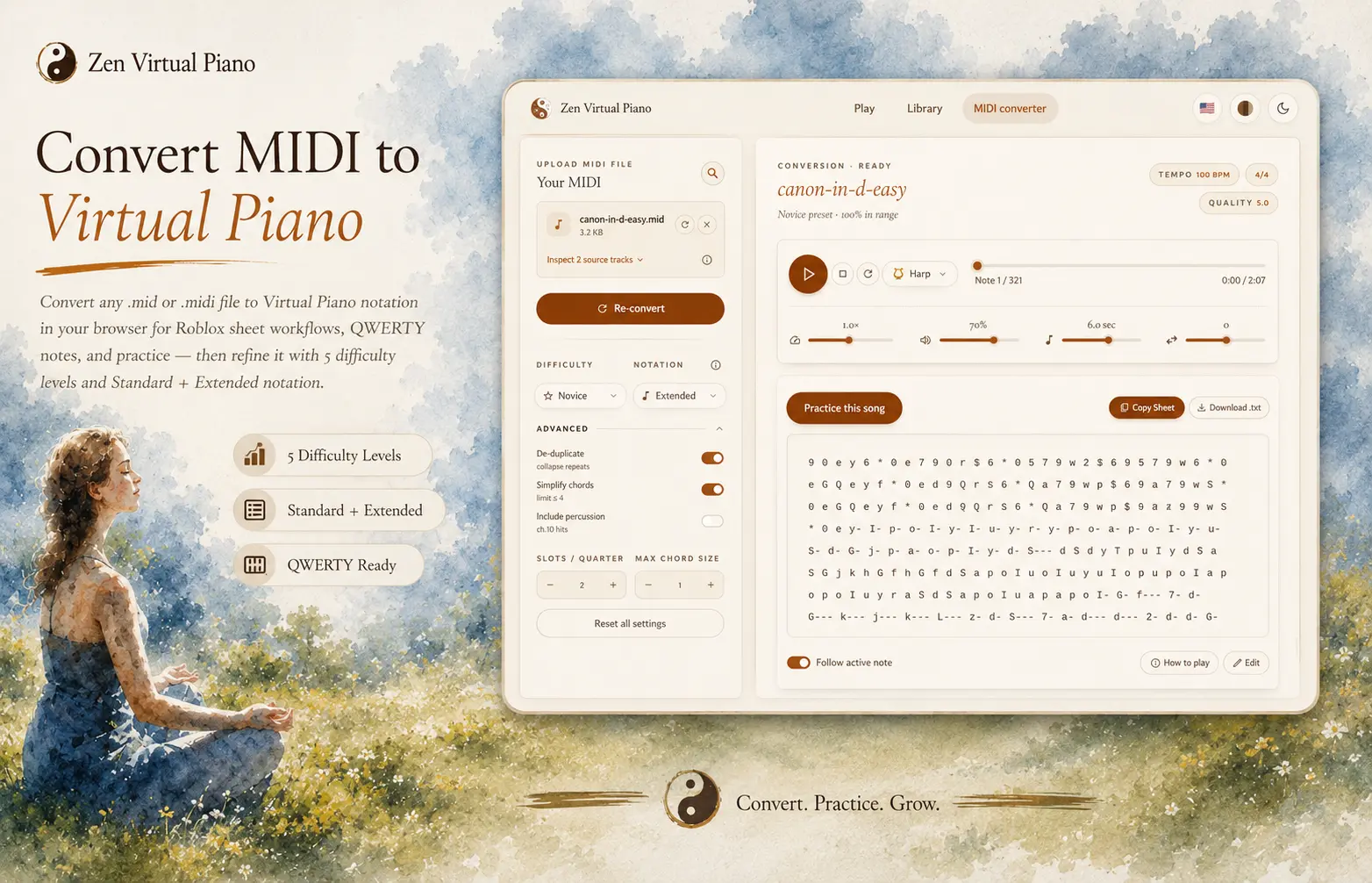
Normal source inspection and conversion happen locally in your browser. If source inspection, source selection, or conversion fails, Zen Piano automatically attempts a private, failure-only diagnostic capture of the selected MIDI (up to 5 MiB) and limited details such as the request context, file type and size range, failure category, shortened error detail, sanitized settings, and capture time. It is used to investigate the failure, not to create a user cloud file: authorized Zen Analytics engineering and operations administrators and the required service infrastructure are the access boundary. Captures become eligible for deletion after 30 days, but a missed, failed, or backlogged daily sweep can delay deletion. Roblox is where you practice the result; the converter itself doesn't export a Roblox-specific file.
Start with a MIDI file that converts cleanly
Reach for a clean piano or keyboard-focused MIDI when you have the choice. Solo arrangements almost always produce a more readable sheet. Dense orchestral files can still work, but overlapping instruments tend to collapse into thick chords and fast note runs once converted, which usually means more editing before the sheet is comfortable to play.
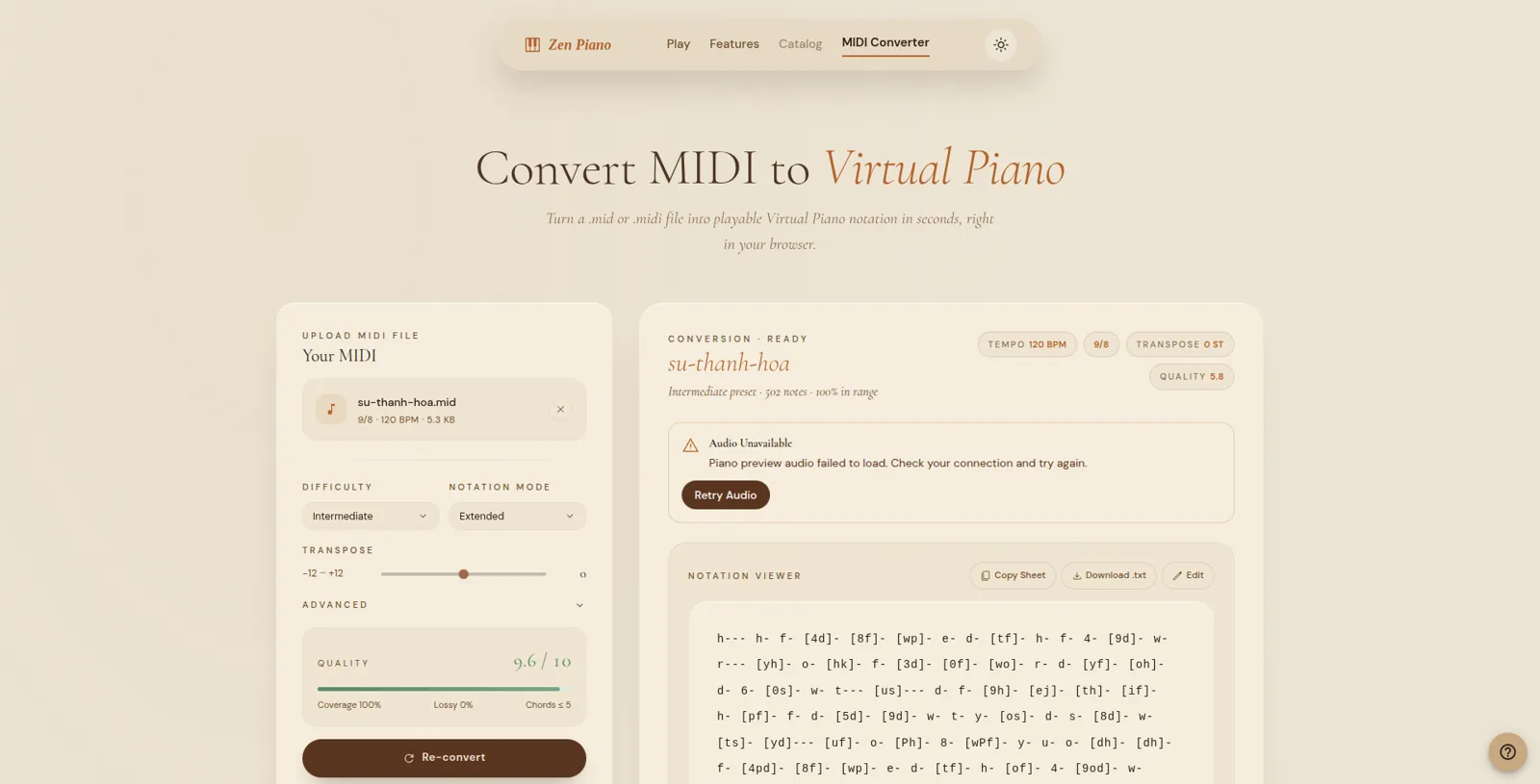
Pick Standard when you want a compact sheet of note tokens. Pick Extended when visible hold and pause markers would help you follow the source timing. If you do not have a file yet, use the MIDI source guide to choose and inspect one before returning to this procedure.
Choose the input and output before you practice
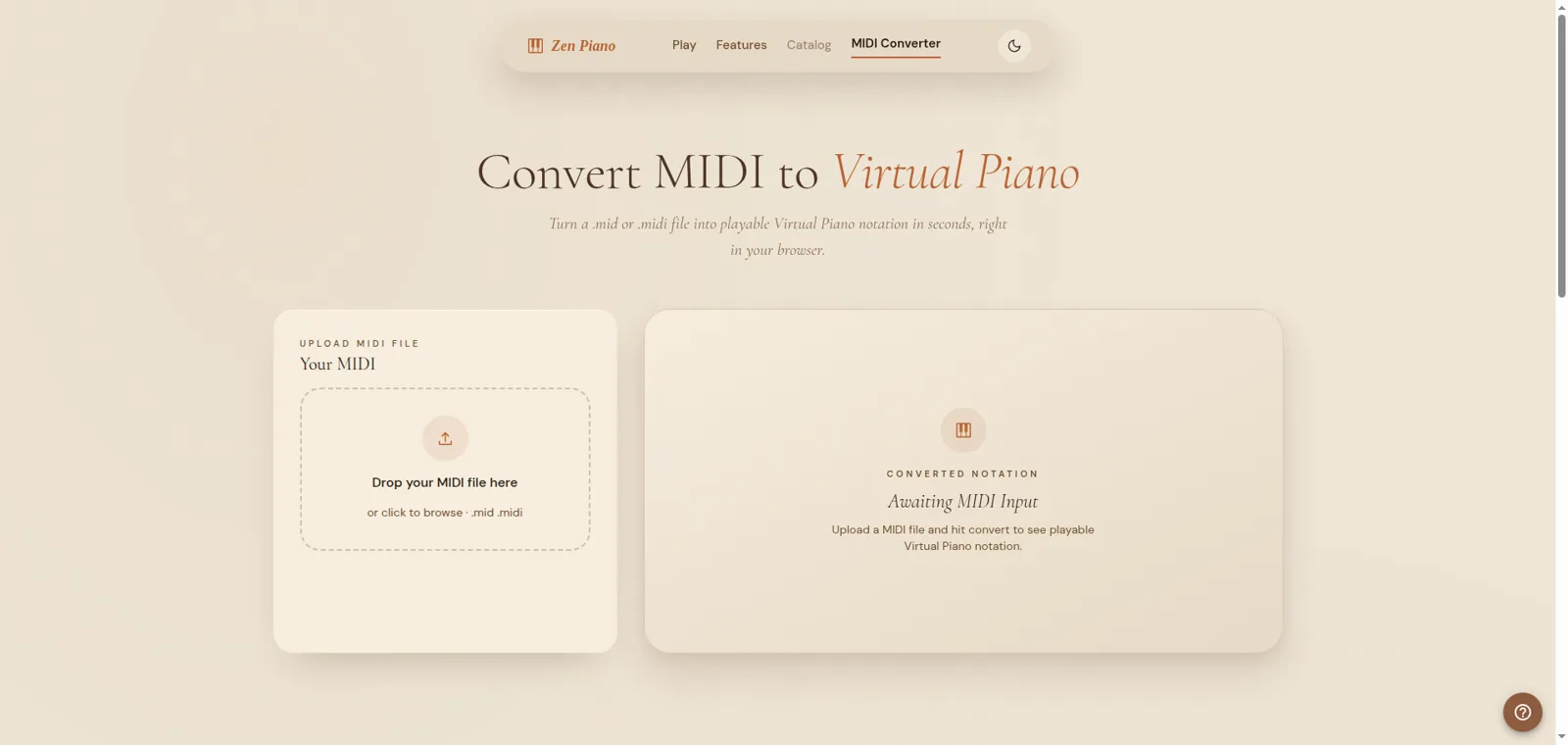
Choose or drop one local `.mid` or `.midi` file, then inspect the available sources. Use the recommended selection when it fits the arrangement, include all non-percussion sources when you need the fuller result, or choose sources manually when you know what to keep. Next, choose one of the five Zen levels and Standard or Extended notation. The result is a playable notation sheet, not a score-perfect transcription or a native Roblox file.
Preview before you practice
Treat your first conversion as a draft, not a finished sheet. Dense chords, overlapping instruments, and long sustained passages can come through technically accurate and still be awkward to actually play.
You'll usually catch the problem before it costs you real practice time: a phrase that looked fine in the preview turns out to be an unplayable stack of notes once you sit down to play it. That's not a conversion bug. It means a dense source file, orchestral ones especially, flattened several instruments into one chord that's faithful to the original but not something two hands can reach.
Prepare phrase boundaries and hand assignment
Adapt the sheet without rebuilding it from scratch:
- Mark phrase boundaries and timing checkpoints before you touch a single note.
- Look at which notes land at the same time and decide which hand, or which fingers, can actually reach that chord comfortably.
- Keep the phrase order fixed while you adjust one layer at a time: timing first, then fingering, then expression.
- Save whichever converter settings and phrase splits worked, so you're not starting from scratch on the next song.
Practice now
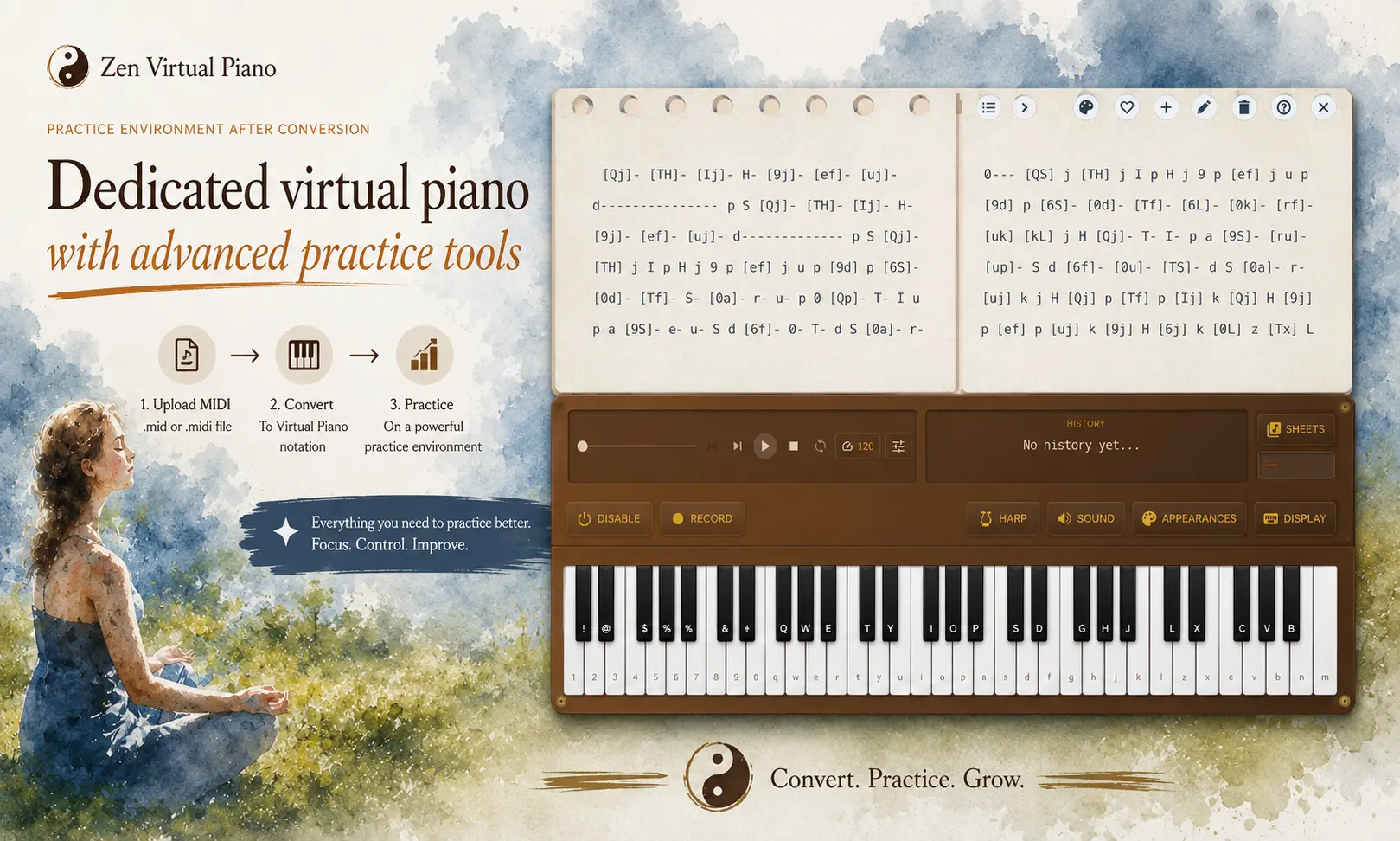
If you do not have a source file yet, use the MIDI source guide to inspect one before downloading. Once you have a local file, load it into the converter, preview the hardest phrase, and adjust source selection, level, or notation mode. When the notation is readable, use Practice to carry it into Zen Virtual Piano as a custom sheet. The Library remains the contextual alternative when you want a ready-to-practice sheet instead.
Conversion and practice destinations